
Many data teams keep their data model in three environments. In DEV, the team makes its changes. In TEST, people test the changes. PROD (production) is the version that the business uses every day.
When a change is ready, the team moves it from DEV to TEST. When the tests are good, the team moves it from TEST to PROD. This move is a promotion.
But in DEV, many people work on many tasks at the same time. When two of five tasks are ready, somebody must find which changes belong to those two. Often, nobody remembers all of them.
This post shows a better method. When you change the model in Model One, it records the work item that you work on. To promote, you select the work that is ready. Model One finds the changes of that work. It also adds the items that these changes need, if the next environment does not have them.
Two usual methods, two problems
Usually, a team promotes changes in one of two ways. Both ways have a problem.
The first way is to copy the full model from DEV to TEST. This is easy. But DEV also contains unfinished work. The copy moves that work to TEST too. Then each promotion must wait until all of the work is ready.
The second way is to select the changes by hand. You compare DEV with TEST, and you decide which differences are ready. This way is correct, but it depends on memory. Weeks later, people remember the large changes, but they forget a small one. Then the tests fail, and nobody knows why.
A comparison shows what is different. But it does not show which task each difference is for. It also does not show what else that task needs.
Each change knows its work item
In Model One, a change gets its work item at the time that you make it. You do not have to find the work item later, at the time of the promotion.
A work item is an item in the Tasks view of Model One, for example a task, a bug or a feature. A large work item can contain smaller work items, for example a feature with its tasks.
In the status bar at the bottom of the screen, select your work item under Working on. After that, Model One records each change that you make to the model with this work item. The Changes tab of the work item shows all of these changes.
This also applies when an AI assistant changes the model for you. Changes from OneAssist, the AI assistant in Model One, count toward your work item. This is true when nobody else in the project chats with OneAssist at the same time. Changes from other AI agents, for example Claude Desktop with your personal access token, also count toward your work item.
A project owner can also turn on a rule: each change to the model needs a work item. Then Model One does not save a change from a person who did not select a work item. The rule also applies to AI assistants. If you did not select a work item, Model One tells the assistant to ask you which work item to use. The assistant can then select it for you.
If the rule is off, Model One keeps the changes without a work item in a list. Later, an editor can assign them to the correct work item.
Promote only the work that is ready
Because each change knows its work item, the question changes. You do not ask “What did I change?” You ask “Which work is ready?”
In Model One, the team makes all changes in DEV. Nobody changes TEST or PROD directly. Instead, TEST and PROD each contain a release. A release is a saved version of the model that nobody can edit.
To promote work, you select it. You can select a full feature, one task or one small change. Model One then makes a new release for the next environment: the current release, plus the selected work and the items that it needs.
The work comes from the environment before. Work for TEST comes from DEV. Work for PROD comes from TEST. Thus, PROD gets the same work that you tested in TEST.
Work that is not ready stays in DEV. If the selected work needs a part of other work, Model One adds that part and tells you.
DEV, TEST and PROD are not three copies of one model. They are three steps on the path of finished work.
Model One adds what the work needs
The parts of a data model depend on each other. For example:
- A new column needs its table and the business term that it uses.
- A link between two tables needs both tables.
- A data load needs the tables that it reads and fills.
When you promote work, Model One finds these connections. If the next environment does not have an item that the work needs, Model One adds it. It also shows you why it added the item.
Model One also checks what a promotion can break. For example, your work removes a column, but TEST still uses this column in another place. Then Model One also promotes the change to that other place. If no such change exists, Model One stops the promotion. It shows you what can break.
At the end, Model One checks the new release with the same rules that it uses for each change in DEV. If the promotion causes an error, you cannot request it. Thus, a promotion cannot add a column without its table.
You stay in control
Each environment has its own rules. For example, the person who promotes to TEST can decide alone. But for PROD, one or more named people must approve each promotion. An environment can also need a status for each work item, for example “Done” before PROD.
AI assistants can show a preview of a promotion. But only people can request, approve and complete a promotion.
A promotion also gives you the files that change the databases and the data loads. Your team runs these files, or an automatic process runs them. Model One makes sure that these are the same files that people approved. After the files run, a person confirms this in Model One.
You can always see where each work item is. The Environments tab shows which work items TEST and PROD contain. It also shows which work waits for the next promotion. Each work item also shows the environments that contain it.
You can also remove work from an environment. If work in TEST is not good after all, remove it from TEST. Model One then also removes the items that need this work. If Model One cannot remove the work safely, it tells you why. You can also return an environment to an earlier release. These changes need the same approvals as a promotion.
An example
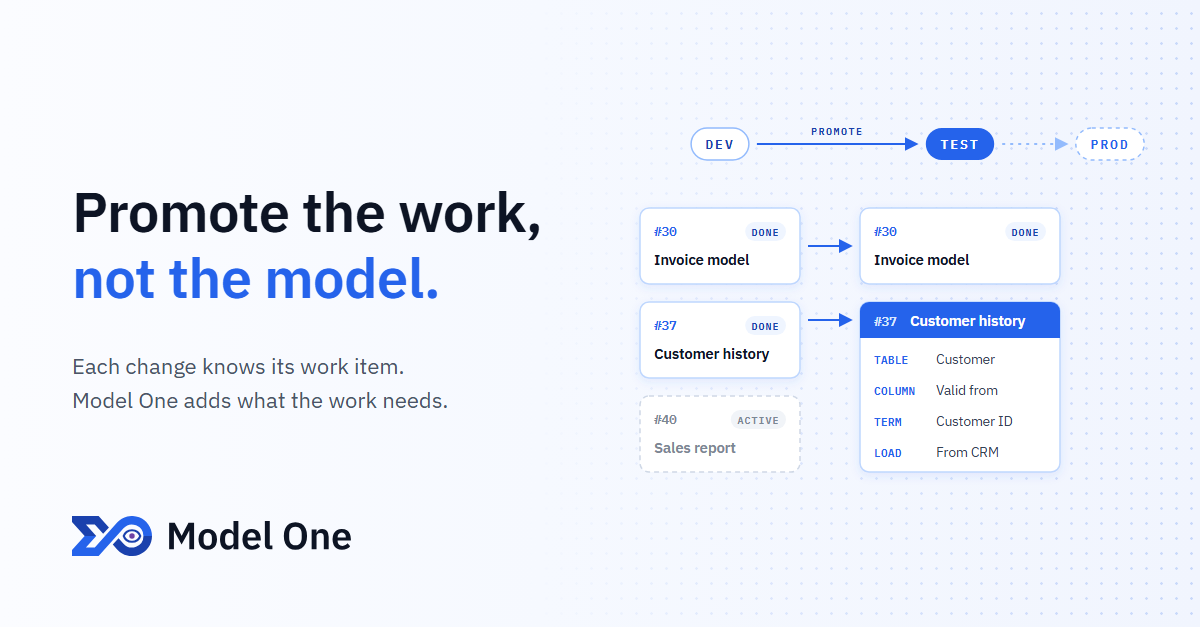
Three work items are open in DEV: an invoice model, customer history and a sales report. The invoice model and the customer history are ready. The sales report is not ready.
- Each team member selects a work item and makes changes as usual. Nobody writes a list of changes.
- On the Environments tab, the TEST column shows the three work items that wait in DEV.
- A team member clicks Promote… and selects the invoice model and the customer history. Model One shows the items that it adds, and why.
- An approver approves the promotion. Then the team runs the files and confirms this in Model One.
- Now TEST contains the two work items. The sales report stays in DEV.
Later, the same two work items go from TEST to PROD in the same way. Nobody compared models. Nobody had to remember changes.
What Model One does not do
Model One does not run the files. It also does not connect to your databases.
Somebody can still change a PROD database directly. Model One cannot prevent this. But it can compare an export of the database with the release. Then it shows the differences in tables, columns and keys.
The record of changes is only as good as the work items that people select. That is why the rule is useful. Also, if two work items change the same thing, Model One cannot separate the two changes. It shows the overlap, and you decide.
Track the work, and the release follows
Most teams already track their work as tasks. In Model One, the model keeps the same record. Each change records the work item of the person who made it. Thus, a promotion starts from the work that is ready. It does not start from a list of changes that somebody must remember.
Environments and promotions are part of every plan, also of the free Community plan. The Community plan gives you one project with up to 20 entities (tables), in your own Azure subscription. There is no license fee. The Azure resources cost approximately USD 150 a month at the default sizes.
Read how environments work, step by step, or contact us about a trial.